
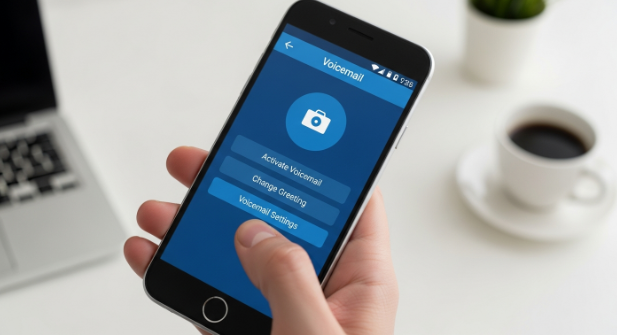
Setting up voicemail on Android feels simple once you know where to begin. With the right steps, you activate it quickly, personalize greetings, and manage messages without confusion. This in-depth guide explains how to set up voicemail on Android clearly, covering multiple methods, troubleshooting, and optimization. You will learn everything from basic configuration to advanced voicemail settings.
What is Voicemail on Android and Why It Matters
Voicemail stores audio messages when calls remain unanswered. You benefit from it in busy hours, meetings, emergencies, or low-signal areas. Also, it helps you respond when you find time, improving communication. Instead of missing calls, you maintain professional availability and remain reachable, even when offline or away.
How to Set Up Voicemail on Android Using Phone App
Learning how to set up voicemail on Android starts with the default dialer. Most Android devices contain a built-in voicemail feature that you activate in minutes. Follow these steps carefully for smooth configuration and immediate use:
- Open the Phone app.
- Tap the three-dot menu for Settings.
- Select Voicemail or Voicemail Settings.
- Choose your carrier voicemail service.
- Enter voicemail number or configure automatically.
- Save settings and long-press 1 to access the inbox.
Using this method activates voicemail quickly. Then you customize greetings, PIN security, and notifications based on personal preference.
How to Set Up Voicemail on Android via Carrier Service
Carriers provide built-in voicemail support. With a correct mailbox number, activation works instantly. You simply dial the support code (usually long-press 1) and follow the audio setup to record greetings and set a password. After activation, voicemail stores messages safely and notifies you instantly.
Set Up Voicemail Using Visual Voicemail
Visual voicemail makes message management easier. Rather than dialing numbers, you view messages like emails. You play, delete, or transcribe simply from a list interface. Follow these steps:
- Download your carrier’s Visual Voicemail app.
- Launch the app and log in or verify number.
- Grant microphone, storage, and notification permissions.
- Record greeting and configure auto-download.
- Enable message transcription if the feature exists.
With visual voicemail, you save time and handle everything without dialing.
Set Custom Greetings After Setup
Once you finish initial activation, you personalize voicemail. A greeting shows professionalism and clarity. You record it inside voicemail settings and keep it friendly or formal depending on use. Short scripts ensure callers understand you will return their call later.
How to Access Voicemail Messages Easily
You retrieve voicemail through the dialer, notification bar, or visual voicemail app. To open it through dialer:
- Long-press key 1.
- Enter PIN if prompted.
- Press keys to listen, save, or delete messages.
Also, many Android phones display voicemail notifications on lock screen for faster access.
Troubleshooting Voicemail Setup Issues
Sometimes voicemail fails to activate on the first try. You solve most issues using quick methods. Restart device, reinsert SIM, update carrier settings, or reset network configurations. After that, voicemail works normally. If issues continue, contact carrier support.
Improve Voicemail Experience With Smart Settings
You optimize voicemail further for better control. Enable Wi-Fi calling for strong signal coverage and faster message sync. Set notification tones for voicemail alerts. Also, clear old messages regularly to free storage. Using transcription makes message reading simpler when you’re in meetings or quiet spaces.
Enable Voicemail Notifications on Android
Notifications keep you updated instantly. Check voicemail notification settings inside the Phone app or system alerts. Turn on vibration, popup, and sound to avoid message delays. Visual voicemail apps also allow badge notifications, making unread messages noticeable.
How to Change Voicemail Password
Security matters, especially for business use. Change your voicemail password inside carrier voicemail settings. Use a strong numeric password and avoid predictable combinations. Update it periodically to protect sensitive message content.
How to Disable or Turn Off Voicemail
Sometimes disabling voicemail becomes necessary. You can turn it off via carrier service codes or settings. Open voicemail settings and remove voicemail number, or contact the network provider. Once disabled, calls ring without message recording.
Advanced Tips for Better Voicemail Management
Organize messages systematically. Mark priority messages and delete unnecessary ones. Use transcription or cloud backup when supported. Short, clear greetings reduce caller confusion. Maintaining voicemail regularly improves usability and accessibility.
Conclusion
You now understand how to set up voicemail on Android completely. With simple steps, advanced configuration options, and troubleshooting guidance, you activate voicemail confidently and manage messages like a pro. Start now, customize greetings, and enjoy reliable communication. Take control and set up your voicemail today for smarter call handling.
FAQs
- Why is voicemail not working on my Android phone?
Network issues, incorrect mailbox number, or disabled voicemail settings often cause this. Restart phone, reinsert SIM, and reconfigure voicemail. - Can I use voicemail without data or Wi-Fi?
Yes, basic voicemail works through cellular network. Visual voicemail may need data for message syncing. - How do I change my voicemail greeting later?
Open voicemail settings or dial voicemail inbox, then select greeting setup and record a new message. - What is visual voicemail feature on Android?
It lets you view messages in a list format, play them individually, and read transcribed text. - Does voicemail require a password?
Most carriers require a password for security. You change or reset it anytime in carrier voicemail settings.